The Complete Guide to Running AI Models Locally: From Core Concepts to Four Practical Methods

Run AI locally on your own computer: four methods explained from core concepts to raw code.
This article breaks down local AI into its essential components — model files, quantization, inference engines (llama.cpp), and hardware memory — then demonstrates four ways to run models locally: the beginner-friendly LM Studio desktop app, the developer-favorite Ollama CLI, the deployment-ready Docker Model Runner, and a pure-code approach using llama.cpp directly. Memory capacity determines which model sizes you can load; memory speed determines inference throughput. The 14B–35B parameter range is the sweet spot for most users.
Everyone's talking about "running AI locally," yet almost nobody explains it clearly. Videos packed with jargon — quantization, GGUF, inference engines — leave people thinking they need a PhD and a machine worth tens of thousands of dollars just to try it, so they end up paying for cloud subscriptions instead.
The truth is, local AI can be summed up in one sentence: It's a model file on your computer, plus a program that can run it. No cloud, no API keys, no internet connection, no subscriptions — everything else is just details. This article breaks down the real building blocks of local AI and walks through four approaches, from zero-setup tools to raw code.
The Essential Difference Between Cloud AI and Local AI
When you use tools like ChatGPT or Gemini, your message leaves your computer, travels over the internet to a data center, gets processed by a massive machine you don't own running a giant model, and the answer streams back to you. Your computer barely does any work — it's just a window into someone else's machine.
Local AI completely reverses this: the model file containing all the "intelligence" is downloaded to your computer, and when you ask a question, your own CPU or GPU does the computation. No data leaves your machine. This delivers three concrete benefits:
- Privacy: Your data stays local and goes nowhere
- Cost: No subscription fees, no per-token charges
- Offline access: Works on a plane or in a coffee shop with terrible Wi-Fi
To be honest about the tradeoffs: the models you can run at home are much smaller than frontier models like Claude or those from OpenAI. But they've improved dramatically over the past few years and are more than capable for a wide range of everyday tasks, including coding.
Breaking Down the Four Core Components of Local AI
The Model: Just a Big File
A model isn't some magical black box — it's a large file packed with billions of weight values baked in during training. It doesn't think or run on its own; it just sits on your disk like any other file. Companies like Meta, Google, Alibaba, and Mistral release these files for free. These are the open-source models you've heard of: Llama, Gemma, Qwen, DeepSeekAd, and others.
The "B" in a model name stands for Billion, referring to the number of parameters — essentially the count of numbers inside the file. The rule is simple: more parameters generally means smarter, but also a larger file that demands more memory and compute to run. An 8B model might only be a few gigabytes, while a 70B file is enormous and most laptops simply can't load it.
Quantization: The Key Trick That Makes Large Models Runnable on Normal Hardware
Quantization sounds intimidating, but it works just like compressing a photo — storing those billions of numbers at lower precision to dramatically shrink the file size with minimal quality loss. A model that originally requires 60GB of memory might only need 5, 6, or 7GB after quantization.
When you see the term GGUF, it's essentially the standard file format for these compressed models. So when you hear "quantized model," just think "model compressed for better runnability" and you're on the right track. Quantization levels are labeled Q4, Q6, Q8, and so on — lower numbers mean more aggressive compression and smaller files, while Q8 is noticeably larger than Q4.

The underlying mechanism involves reducing model weights from high-precision floating-point representations (such as FP32 or FP16) down to lower-bit integer formats (like 8-bit, 4-bit, or even lower). With Q4, each weight is stored using just 4 bits, saving roughly 75% of the space compared to FP16. In practice, this precision loss is nearly imperceptible for the vast majority of tasks — users rarely notice any drop in response quality, yet memory usage can shrink to a quarter of the original size or less.
The GGUF format was defined by the llama.cpp project and has become the de facto standard for distributing local models. One of its key advantages is support for "partial GPU offloading" — when your GPU's VRAM can't fit the entire model, some layers can live in VRAM while the rest run in system RAM, at some cost to speed. Model filenames on platforms like Hugging Face typically include the quantization level directly, for example model-Q4_K_M.gguf, where K_M refers to a specific quantization algorithm variant and _M stands for "medium quality" — a well-balanced choice between file size and precision.
The Inference Engine: The Program That Actually Runs the File
A model is just a file full of numbers — it can't run itself. You need a program to load those numbers into memory, perform the actual computation, and predict the next token. That program is the inference engine. The most well-known one today is llama.cpp.
Here's the key insight: the tools covered next — LM Studio, Ollama, Docker Model Runner — are mostly wrappers around engines like this. The engine does the heavy lifting; the tools just make it easier to use.
llama.cpp was released by developer Georgi Gerganov in early 2023, originally written just to run Meta's Llama model on Apple M1 chips. It's implemented in pure C/C++ with no dependency on any deep learning framework. This design makes it extremely lightweight — capable of running on virtually any platform, including Windows, macOS, Linux, Raspberry Pi, and even Android. It squeezes out hardware performance by leveraging CPU SIMD instruction sets (like AVX2) and platform-specific GPU acceleration backends (CUDA, Metal, Vulkan, etc.).
It's precisely because of llama.cpp's broad low-level support that higher-level tools like LM Studio and Ollama were able to emerge so quickly — they don't need to implement complex matrix math themselves, they just build user-friendly interfaces and APIs on top of llama.cpp. This also means these tools are generally comparable in performance; the reasons to choose one over another come down to user experience and ecosystem integration, not computational efficiency.
Hardware: Memory Capacity and Speed Determine Everything
The only thing that actually determines what models you can run comes down to one question: How much memory does your computer have, and how fast is it?
- For PCs with a discrete GPU, look at VRAM — like NVIDIA's RTX series
- For modern Macs (M-series), thanks to unified memory architecture, look at total system memory
The rule of thumb is simple — the model file must fit into memory with room to spare:
| Memory | Runnable Parameter Count |
|---|---|
| 8GB | 3–4 billion |
| 16GB | 7–8 billion |
| 32GB | 14–30 billion |
Memory speed also matters. A Mac with 128GB of unified memory can run larger models, but inference will be much slower than on a dedicated GPU because of significantly lower memory bandwidth. The author's RTX 4090 with 24GB VRAM can hit around 200 tokens per second on certain models; the same large model runs considerably slower on a Mac due to the bandwidth gap. Memory capacity determines model size; memory speed determines tokens per second. The 14B to 35B parameter range is generally the sweet spot where performance and experience are both solid.
Four Ways to Run Local Models
No matter which approach you use, you're making three decisions: which model to use, which size and quantization level fits your memory, and how you want to interact with it (chat or code). Keep that in mind and every tool will make sense. Here they are, ordered from highest-level to lowest-level control.
LM Studio: The Easiest Desktop App
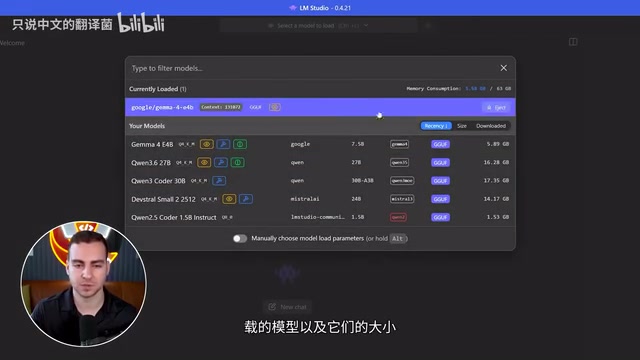
If you just want to chat without touching a terminal, LM Studio is one of the best options. It's free to download, lets you search and download models directly from the UI, and gives hardware-aware hints — flagging which quantization level suits your setup and whether full GPU offloading is possible.
Once a model is loaded, you chat in a window. One setting worth paying attention to is context size — the larger you set it, the more memory it consumes, since all context data has to fit in GPU VRAM. In the author's demo, running a small Gemma model with a dedicated GPU's high bandwidth yields around 120 tokens per second. LM Studio can also load multiple models simultaneously and expose an API server for developer use.
Ollama: The Developer-Favorite CLI Approach
Ollama is more popular among developers — similar in capability to LM Studio but with less visual interface and manual control. After installation, it's available as a terminal command: ollama list to see downloaded models, ollama pull <model-id> to fetch one, and ollama run <model-id> to run it and chat directly. The model registry is Ollama Hub, where you can browse and pull what you want.
The key feature is that Ollama runs a background server on a default port (around 11434) that exposes an OpenAI-compatible API. As long as it's running, any other tool can send requests in the same format used for ChatGPT, and it will automatically load the required model. This is the author's go-to setup.
"OpenAI-compatible API" means Ollama's HTTP interface matches the request and response format of the official OpenAI API — including endpoint structure like /v1/chat/completions, message format (role/content fields), and SSE-formatted streaming responses. This means any app or code library that already supports the OpenAI SDK only needs to change base_url from https://api.openai.com to http://localhost:11434 and set the API key to any arbitrary string (Ollama doesn't validate it) to seamlessly switch to local model inference — no business logic changes required. This design drastically lowers the cost of migrating from cloud to local, and makes popular AI application frameworks like LangChain and LlamaIndex natively compatible with Ollama.
Docker Model Runner: Treating Models Like Containers
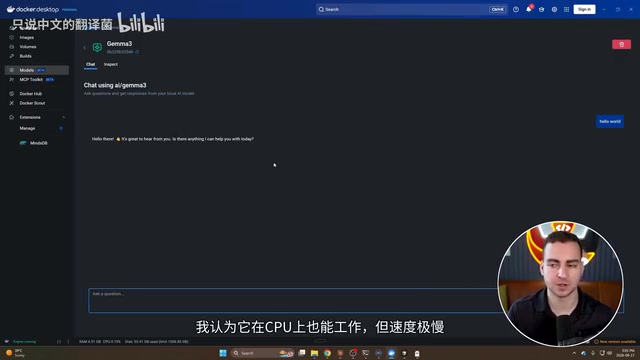
Docker Model Runner is currently available as an experimental feature in Docker Desktop. It works well on Linux with NVIDIA hardware (CPU is also supported but painfully slow). Once enabled, you can pull models from Docker Hub and chat with them directly, with a REST API also exposed (on a port around 12434).
What makes it particularly interesting is that it treats models like containers — you can write Dockerfiles and Compose files, bundle models alongside your application, and expose them as dependencies. If you already live in the Docker ecosystem and care about deployment, this is an excellent production-ready approach.
Pure Code: Bring Your Own Inference Engine
The lowest-level approach is running models purely through code, pulling in an inference engine yourself — typically llama.cpp, which is also the engine powering almost all the tools above. The author downloaded a Qwen model file locally and loaded it with a few lines of Python to generate a response. Alternatively, code can connect to a running Ollama backend service and specify a downloaded model to chat with.
In practice, most developers use Ollama to manage and host models, then call it via API from their code rather than loading models manually every time.
So Which One Should You Use?
The author's recommendation is clear and practical:
- Just want to chat, don't want to touch a terminal → LM Studio, easiest with the most features
- Developer who needs scripts or apps to talk to models → Ollama, excellent for local development
- Already using Docker and need deployment → Docker Model Runner, reliable for production
- Want to understand every layer and maximize control → Pure code + llama.cpp
Regardless of which you choose, they all ultimately build on the same blocks: a model file (a bunch of numbers), an inference engine, and layers of increasingly convenient tooling on top. Once you understand that, you understand local AI — and it never required a PhD or a machine worth tens of thousands of dollars.
Related articles

Free Unlimited Claude Code Solution: Agnes AI + CC Switch Setup Guide
No paid subscription needed — pair the free AI platform Agnes AI with the open-source tool CC Switch to provide a backend for Claude Code, enabling unlimited free calls to text, image, and video models. This guide covers the full setup, test results, and usage boundaries.

A Complete Zero-Cost Guide to Getting Started with Claude Code for Beginners in China
A beginner's guide to Claude Code for users in China: two installation methods (command line and IDE plugin), full configuration steps for replacing the official API with the free domestic LongCat model, and a hands-on demo of building a small tool with natural language, plus tips.

When the NSA Gets Involved: The AI Supply Chain Crisis Behind Open-Source CVEs and API Key Hijacking
Multiple open-source projects disclosed severe CVEs in one day, PHP flaws alarmed the FBI, and Railway and OpenCode were breached with API keys stolen. This article breaks down the vulnerability window, AI-accelerated exploitation, and the AI supply chain crisis behind the API key black market, with a developer defense checklist.