The Ultimate Codex Guide: From Installation to Real-World Practice — Master the All-Purpose AI Assistant in One Sitting

A complete guide to mastering the AI Agent tool Codex, from installation and permissions to real-world deployment.
This article systematically covers OpenAI's AI Agent tool Codex, from concept to hands-on practice. It explains how Codex differs fundamentally from ChatGPT through the craftsman-versus-construction-crew analogy, then covers usage modes, account setup, interface features, permission modes, and model selection. It goes deeper into projects, office plugins (Word/Excel/PPT), task queuing and parallelism, skills and automation, the three work environments, browser/computer control, and agents.md. Finally, a full website-building walkthrough wraps up with six core tips and common pitfalls.
The Ultimate Codex Guide: From Installation to Real-World Practice — Master the All-Purpose AI Assistant in One Sitting
OpenAI's Codex is redefining AI tools — it's not just a coding assistant, but an all-purpose Agent that can directly operate your computer, generate files, and deploy projects live. Based on a detailed tutorial from a Bilibili creator, this article takes you from account setup to real-world projects, giving you a complete, zero-to-hero grasp of Codex.
What Exactly Is Codex? And How Is It Fundamentally Different from ChatGPT
Codex is an AI agent tool launched by OpenAI. Although it started out in programming, it has now evolved into an all-purpose assistant that can handle all kinds of work — writing code, making slides, building Excel spreadsheets, drafting Word reports, operating a browser, and even producing videos are all within its capabilities.
Its fundamental difference from ChatGPT can be explained with an analogy: imagine you're renovating your home. ChatGPT is like a consultant — you send him a photo of your kitchen, and he tells you the stove should move left and the cabinets should be repainted cream white. Then he's done, and you have to do the work yourself. Codex is like a construction crew — you say "renovate the kitchen," and it measures the space, draws up plans, moves the stove, paints the walls, and even takes a photo for you to inspect when it's finished.
More importantly, Codex can have multiple "workers" doing tasks simultaneously — one painting the kitchen, one installing the bathroom, one fixing the living room light — all without interfering with each other, all running in the background. That's why people call Codex an "Agent": an AI that can actually do the work, not just a Q&A bot.
What Is an AI Agent?
Agent is the core evolutionary direction in the AI field over the past two years. Traditional chatbots (like ChatGPT's conversation mode) are essentially an "input-output" system: you give text, it returns text, and execution falls entirely on the human. The core characteristics of an Agent are autonomy and tool use — it can break down tasks, plan steps, call external tools (file systems, terminals, browsers, third-party APIs), and dynamically adjust its next actions based on execution results until the task is complete.
In the industry, an Agent's capabilities are usually broken down into four elements: Planning, Memory, Tools, and Action. Codex has all four: it can read and write project folders (Memory and Tools), run command lines and install dependencies (Action), and troubleshoot and retry when it hits errors (Planning). Understanding this helps you see why it and the "ask a question, get an answer" ChatGPT are not the same kind of product.
Four Ways to Use It and Account Preparation
Codex has four usage modes: the CLI version, the VS Code extension, the desktop client, and the web version. All four perform basically the same, with largely overlapping features. But considering difficulty of use, comprehensiveness, and friendliness to beginners, the desktop client is the top choice, and it's the focus of this article.
Before installing Codex, you need a ChatGPT account, and a Plus or Pro subscription is recommended. Free accounts can use it, but the quota is very limited and gets used up in a few goes. Plus users get 30 to 150 messages every 5 hours, which is plenty for a normal day; heavy users might consider Pro.
Compared with similar tools like Claude Code, Codex has one clear advantage: more generous quota that resets frequently, plus fewer restrictions on accounts.
Installation is no different from any normal app. Go to the official Codex website and download the installer for your system. There are two login methods: one is logging in with your ChatGPT account, which uses your subscription quota directly and unlocks all advanced features; the other is logging in with an API Key, which is pay-per-use — large tasks can cost a fair bit, and model updates are slower. It's recommended to log in with your ChatGPT account.
Main Interface Features Explained
After logging in, you enter the Codex main interface. The left sidebar contains four feature buttons from top to bottom:
New Chat: Create a new chat window under the current project and assign tasks. Search: Search for keywords across all past conversations. Plugins: Contains two pages — Plugins and Skills. Automation: Manage scheduled tasks.
In the middle there are two important lists — Projects and Chats. Chats are like ChatGPT conversations, good for gathering information, writing copy, translation, and other miscellaneous work. Projects correspond to a folder on your computer — all files you generate within a project are saved in that folder and won't be lost. A simple rule of thumb: whenever files are involved, work in a project; for casual chatting and questions, use a chat.
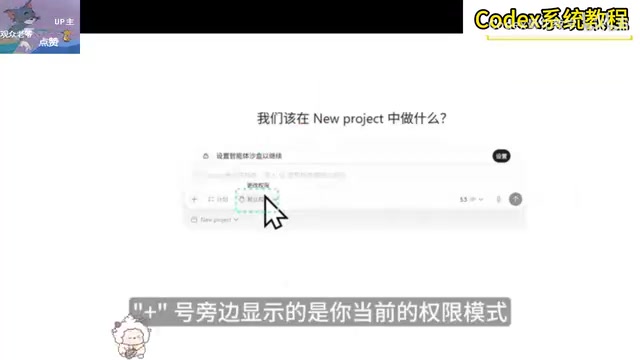
The input box is in the center of the main area — you can type requests directly in Chinese. Typing the @ symbol will bring up a plugin or file list as context, and typing $ will trigger a skill. The plus button at the bottom-left of the input box supports file uploads and includes Plan Mode — when enabled, Codex only discusses the plan and won't actually modify files.
Three Permission Modes and Model Selection
Because Codex can directly modify files and run commands, there's a concept of "delegating authority," with three modes:
Default permission is the safest mode — Codex can only operate within the project folder, and anything involving the internet or terminal commands requires your approval, suitable for beginners. Auto-review mode has Codex assess risks itself — safe operations pass automatically, and only risky ones prompt a popup. Full access is the highest permission — Codex can do anything and never asks, offering the highest efficiency but with risk.
Recommendation: use default permission for your first week, try auto-review in the second week, and once you're comfortable and have Git backups in place, consider full access.
As for models, options include GPT 5.5 (the most powerful, recommended default), GPT 5.4 (balanced capabilities), GPT 5.4 mini (fast and quota-efficient), GPT 5.3 Codex (programming-optimized), and more. Thinking intensity comes in four levels — low, medium, high, and super high — with medium being fine for everyday tasks. There are also two speed options, Standard and Fast, with Fast mode running at about 1.5x speed but consuming more quota.
Project Creation and Real-World Office Scenarios
There are two ways to create a project: create a new blank project (good for starting from scratch) or use an existing folder (good for working with existing files). Each project corresponds to a folder, and all generated files are saved inside it.
Codex's plugin ecosystem makes it capable of all kinds of everyday office tasks:
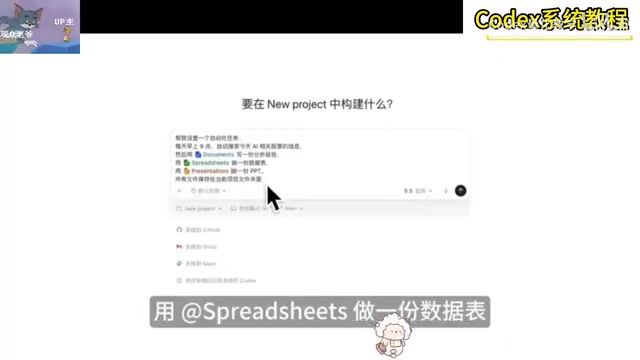
- Generate Word documents: After installing the document plugin, an instruction like "Write an AI industry trend analysis report for me, use @@document to save it as Word, with a table of contents, comparison table, and conclusion."
- Create Excel spreadsheets: Use the spreadsheets plugin for data organization tasks like building stock comparison tables.
- Generate slides: Through the presentation plugin, you can specify style, page count, imagery, and other requirements.
You can even request multiple files in a single message — Codex will process them in parallel, and you'll find all the outputs in the project folder.
Task Queuing, Jumping the Queue, and Parallelism
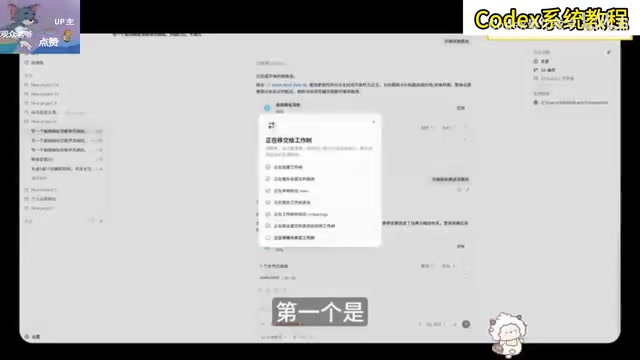
These are high-frequency operations on the Codex desktop app. Task queuing: When Codex is executing task A and you send a new message, it will queue behind A and execute in order. Task jumping the queue: Click the guide button next to a message, and the new request skips the queue and is injected directly into the current task, so the AI adjusts as it works. Multi-task parallelism: Just open a new chat to run multiple tasks at once without interfering with each other — you can even run tasks in parallel across projects.
Note that chat memory is not shared between different conversations, but they can all see all the files in the same project folder.
Plugins, Skills, and Automation
Skills are pre-written execution steps packaged as Markdown files — Codex follows the steps when performing a specific task. The most commonly used built-in skill is imagegen, which generates images directly in a conversation. Plugins are one level above skills, containing multiple skills plus the ability to connect with external apps.
Trigger methods: type @ to select a plugin and call it manually, type $ to invoke a skill. Codex will also autonomously decide whether to call one based on the task.
Automation makes repetitive tasks easy. Just tell Codex in natural language to set up a scheduled task, like "Every morning at 9 AM, automatically search for AI stock information, then generate a Word analysis report and an Excel data table." After creating it, you can view, modify, pause, or delete the task in the Automation panel. It's best to test the instruction in a normal chat first and confirm you're satisfied before turning it into a scheduled task.
Three Work Environments: Local, Worktree, and Cloud
Local mode is the most direct — Codex works right on your computer and changes are immediately visible. Good for small edits, but if you break something you have to undo manually, so backing up beforehand is recommended.
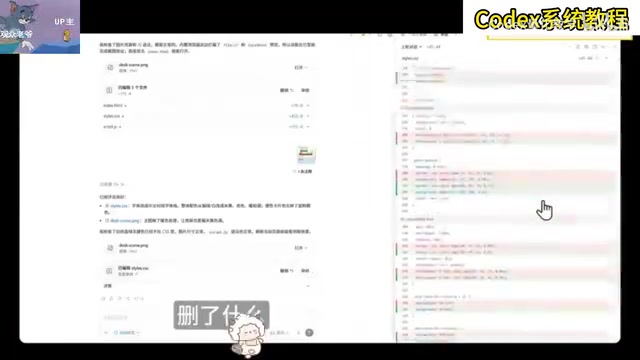
Worktree mode is a core feature — Codex creates a parallel copy of the project, works on the copy, and never touches the original files. It's like photocopying a contract twice and giving each copy to a different lawyer to edit, then comparing and merging at the end. When finished, you can review changes in the diff panel and choose to merge, create a new branch, or discard.
Cloud mode sends tasks to OpenAI's servers to execute, so your computer doesn't need to stay on — good for time-consuming large tasks, but it requires connecting a GitHub repository, which is more complex to set up, so beginners can skip it for now.
The Relationship Between Git, Branches, and Worktree
The "commits," "branches," "merges," and "discarding copies" mentioned repeatedly in this article are all built on Git, the version control system. Git saves a snapshot (commit) of every change to a project, so you can always roll back to any historical version — this is exactly what gives you the confidence that "if you break something, you can quickly roll back."
A branch is an independent line of development in Git — you can pull a branch off the main line to experiment, then merge it back when done, without affecting anything else. A Worktree is a native Git feature: it allows the same repository to check out multiple working directories at once, each corresponding to a branch. Codex uses exactly this mechanism to open a separate physical copy outside your original folder to work in.
So it's recommended to run git init and complete an initial commit before starting any Codex project — otherwise Worktree mode and "one-click undo" will both lose their foundation.
Operating the Browser and Controlling Your Computer
After installing the Browser Use plugin, Codex can autonomously open a browser, visit websites, click buttons, fill out forms, and take screenshots or record the screen. With the Computer Use plugin installed (currently Mac only), Codex can even control other apps on your computer, like opening a browser to search for and download content.
agents.md: Write Codex a Worker's Manual
Create an agents.md file in the project root directory, and Codex will automatically read it and follow the rules every time it starts. This solves the problem of memory not being shared across conversations — you just write the rules once, and they take effect in all conversations. It's recommended to keep it under 150 lines, since anything longer eats up context capacity.
What Is a Context Window?
The article mentions that agents.md "should be kept under 150 lines, since anything longer eats up context capacity" — "context capacity" here refers to the large model's Context Window. It's the upper bound on everything the model can "see" in a single conversation, including system prompts, agents.md rules, conversation history, project file fragments, and your current instructions, all counted in tokens (roughly equivalent to word fragments).
Once it fills up, the model either has to drop earlier content or throws an error. This explains several seemingly unrelated pieces of advice in the article: why "one task, one conversation" — the longer the conversation, the more bloated the history; why "memory is not shared across conversations" — each conversation has its own independent context window; why the rules file should be concise — it's read in full every time and competes for space with the task itself. Controlling context is essentially controlling Codex's "attention budget."
Complete Walkthrough: Build and Launch a Personal Website with Codex
Create a new project called "Personal Brand Website," then enter a request asking Codex to write the code from scratch and start a local development server, and preview it in the browser. Whatever you're unhappy with, just tell it and the changes take effect in real time.
To deploy and launch, install the Vercel plugin and authorize it, then go back to the conversation and have Codex deploy the site live — within moments you'll have a public URL that anyone in the world can visit.
Six Core Usage Tips
- When files are involved, use a project — don't use a chat. Generated files are managed uniformly and don't get messy.
- One task, one conversation — the purer the conversation, the better the AI performs.
- For complex tasks, produce a plan first — use Plan Mode to have Codex lay out the approach, and confirm before implementing.
- Write clearly what "done" means — define acceptance criteria explicitly, and Codex will verify on its own.
- Commit often — commit after every small step so you can quickly roll back if something breaks.
- Have Codex review Codex — after a big task, open a new conversation and have it check for security and performance.
Common Questions and Pitfall-Avoidance Guide
Quota used up: ChatGPT quota refreshes on a rolling basis every 5 hours, so waiting an hour or two restores it. Broken code: with Worktree mode, just discard the copy; with Local mode, undo everything in the diff panel. Unrelated code modified: explicitly write in agents.md, "Don't make any additional optimizations without my request." Excessive permissions: beginners shouldn't jump straight to full access — stick with default mode.
Codex has evolved from a pure programming tool into an all-purpose work assistant. Whether or not you're a programmer, it's worth mastering early — operations people can set up automated tasks to research and produce reports, photographers can quickly spin up interactive prototypes, and content creators can analyze viral topics. The better you understand your own project and the more clearly you can describe your needs, the higher the quality of Codex's output.
One-line Summary
A complete guide to mastering the AI Agent tool Codex, from installation and permissions to real-world deployment.
Paragraph Summary
This article systematically introduces OpenAI's AI Agent tool Codex, covering everything from concept clarification to real-world execution. It starts with the craftsman-versus-construction-crew analogy to explain how Codex differs fundamentally from ChatGPT in that it autonomously executes tasks rather than merely offering advice; then covers the four usage modes, account preparation, main interface features, three permission modes, and model selection; it then delves into project creation, office plugins (Word/Excel/PPT), task queuing, queue-jumping and parallelism, skills and automation, the three work environments (Local/Worktree/Cloud), browser and computer control, and the agents.md rules file; finally, through a complete walkthrough of building and deploying a personal website, it summarizes six core usage tips and common pitfalls to avoid.
Related articles

GPT-Next Leak, Gemini 4 Argon Imminent: AI News Roundup
GPT-Next leak suggests extreme efficiency; OpenAI's 28-day shipping pledge boosts speed 50%; Gemini 4 Argon nears release; Anthropic subscription value report sparks debate.

GPT-Next Leaked, Gemini 4 Argon Speeds Up, Fable 5.5 May Launch Today
OpenAI's GPT-Next model leaks, expected to be extremely low-cost and possibly part of the 28-day release plan; Gemini 4 Argon internal testing accelerates, NanoBanana 2.1 is live; Semi Analysis tests show Claude Max's equivalent API value is about 5 times that of ChatGPT Pro; Fable 5.5 may launch today.

Gemini 4 Argon Launches Globally: Key Highlights from the AI Daily Brief
Google opens Gemini 4 Argon globally across Pro and Ultra subscriptions and the API, and demonstrates robot control. This article rounds up open-source models, Agent infrastructure, cost transparency, and safety governance updates.