WorkBuddy Beginner Tutorial: Hands-On AI Agent Office Workflow
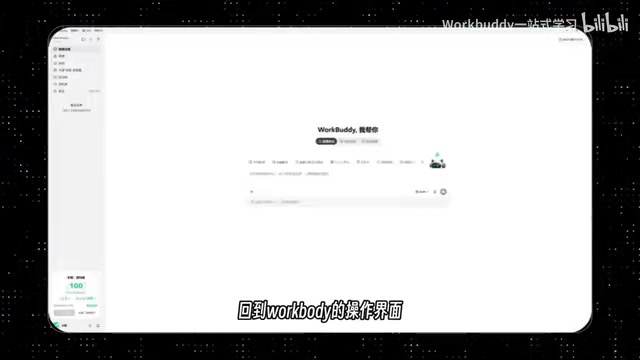
A hands-on guide to WorkBuddy local AI office assistant, from installation and workspace to Ask/Plan/full access modes.
Based on roughly 2,400 minutes of WorkBuddy tutorials, this article systematically outlines the onboarding path for this localized AI office assistant. It first covers basic configuration: downloading from the official site, installing, and claiming daily accumulating points. Then, using "organizing the Downloads folder" as an example, it demonstrates how to limit the AI's operating scope by selecting a workspace and issue instructions in natural language. The article focuses on the three working modes: Ask mode only reads local files for Q&A analysis, Plan mode plans before executing, and full access mode operates directly but with higher risk. It also clarifies three common misconceptions and provides a point consumption ranking and practical advice to help zero-basis users build a safe and controllable AI office workflow.
AI Agents are moving from concept to everyday productivity tools, and WorkBuddy is a localized AI office assistant that has been frequently discussed on platforms like Bilibili recently. It extends the Q&A capabilities of large language models to reading, writing, and organizing local files, making "using AI as an employee" operable for the first time. Based on roughly 2,400 minutes of WorkBuddy tutorial content, this article outlines the core points from installation and configuration to the three working modes, helping zero-basis users quickly build a practical AI office workflow.
Installation and Configuration: From Official Site Download to Claiming Points
Getting WorkBuddy is not complicated. Search "WorkBuddy" in any search engine; the top result is usually the official entry. Click into the official site, hover over "Download Now" to expand the options for each system, and choose the one matching your computer to download the installer. The tutorial specifically reminds users that if the default installation path is the C drive, it is advisable to change the installation location before clicking Next to complete the installation.
An easily overlooked but important habit: claim your points every time you launch the software. Click the avatar in the lower-left corner to log in, then enter "Buddy Gas Station" to claim. The tutorial mentions you can claim 100 points per day, and points accumulate—unused points from today can still be used tomorrow. For non-heavy usage scenarios, the free points are usually sufficient.
First Hands-On Task: Organizing a Folder with Natural Language
WorkBuddy's operation logic is similar to chat-based AI, but with one key prerequisite—selecting a workspace. In the dropdown menu below the input window, click "Open Local Folder," which essentially defines a controlled working area for the AI. For example, after selecting the "Downloads" folder, WorkBuddy's read/write and command execution are limited to that area; if it needs to access other folders or modify system files, it will ask the user for confirmation. The tutorial recommends keeping this default access permission to avoid accidentally deleting important files or changing system settings after granting full access.
Once set up, simply issue instructions in natural language. The tutorial demonstrates an instruction to have WorkBuddy organize the Downloads folder by type, categorizing images, installers, videos, configuration files, and documents into corresponding folders. WorkBuddy first enters a thinking and execution state, then presents a categorization plan, listing detailed counts and specific extensions for each file type, and asks whether to proceed before executing. After the user selects "Execute Directly," the Downloads folder quickly becomes neat and orderly, and hidden system files are automatically skipped with an explanation. This task consumed 28 points—compared to the daily free allowance of 100, daily light usage is not a concern.
For beginners, the tutorial summarizes three common pitfalls: forgetting to manually claim points daily; issuing instructions without first selecting a workspace, which can lead to inaccurate results and extra point consumption; and being afraid to use it for fear of deleting local files—under default permissions, WorkBuddy's policy is quite conservative, asking for confirmation even when organizing files.
Workspace is a common security boundary design in AI Agent tools. Its essence is designating a local folder as the AI's "sandbox," restricting the AI's read/write, command execution, and other operations to within that directory tree. The workspace mechanism addresses the core trust issue of local AI assistants: users want the AI to directly operate on files but do not want it to touch system directories, private documents, or other projects. Unlike cloud AI, local Agents have real file system permissions, and crossing boundaries can cause irreversible damage. Therefore, most tools adopt the "principle of least privilege"—by default, only explicitly selected directories are opened, and out-of-bounds operations require secondary confirmation. Understanding the workspace concept helps users reasonably partition directories when designing automated workflows, such as creating independent workspaces for different projects, which facilitates management and reduces the risk of misoperation.
Three Working Modes: Ask, Plan, and Full Access
WorkBuddy's core working modes are not limited to one. Click the plus sign in the lower-left of the input window to see the "Mode" option, which includes Plan mode and Ask mode; in addition, there is a "Default Permissions" dropdown below, which when enabled enters the full access mode. The capability boundaries of the three modes differ significantly.

Ask Mode: Ask Only, Focus on Reading and Analysis
In Ask mode, WorkBuddy is closer to a traditional large language model, mainly answering questions without operating on computer files. But its key difference from traditional models is that the Q&A scope extends from mere search to local computer files—it can read local documents, look up information, perform data analysis, or read code. In the tutorial demonstration, after switching to Ask mode and selecting a workspace, asking what detailed information is in the folder, WorkBuddy quickly returned the path, file names, file types, and content status. When further asked to delete text files, it prompts that it is currently in Ask mode and needs to switch modes, confirming that this mode indeed does not perform write operations.
Plan Mode: Plan First, Execute After Confirmation
Plan mode corresponds to a "plan first, then execute" strategy. WorkBuddy first organizes a work plan and hands it to the user for confirmation before acting. The tutorial compares this experience to treating WorkBuddy as an employee: the employee submits a plan first, and the boss gives the go-ahead before work begins. For tasks that are complex, vaguely expressed, or high-risk, Plan mode avoids repeated rework due to missing details, actually saving time and points. The tutorial recommends that when you need WorkBuddy to actually do work, you should choose Plan mode in the vast majority of cases.
Plan-then-Execute is an important architectural pattern in the AI Agent field, contrasting with "thinking while acting" patterns like ReAct (Reasoning and Acting). In Plan mode, the Agent first decomposes the task into several steps, forms a reviewable plan, and then executes step by step after user confirmation. The value of this design lies in transforming uncontrollable black-box operations into auditable processes: users can spot omissions and correct direction before action, preventing the AI from consuming large amounts of tokens and points along the wrong path. For tasks involving write operations such as batch file processing and data organization, Plan mode also serves as a "change preview." The industry generally believes that the more complex and risky the task, the more a plan-first strategy should be adopted; simple, deterministic tasks can be executed directly for efficiency.
Allow Full Access: Get Straight to Work, but with Caution
The allow full access mode is located in the "Default Permissions" dropdown, and a risk warning pops up before enabling it. In this mode, WorkBuddy reduces confirmation steps and directly executes various operations, which may involve file modification and deletion. The tutorial demonstrates deleting text documents in a desktop folder in this mode; the operation completes quickly, but the execution strategy is still to move them to the recycle bin rather than permanently delete. Even so, the tutorial still recommends not enabling it unless necessary—accidentally deleting system files or installing something that shouldn't be installed will cause trouble for normal use.
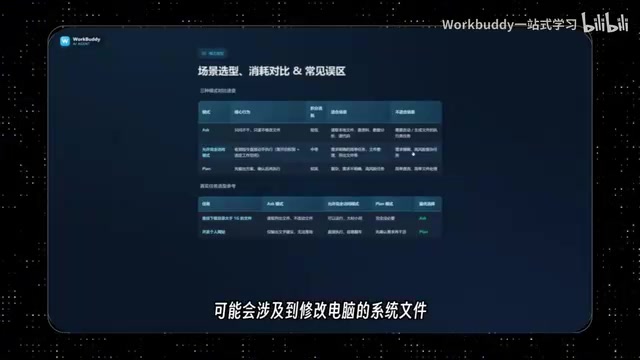
System file protection and privilege escalation are key to understanding "why full access mode consumes more points." Modern operating systems have protection mechanisms for critical directories (such as Windows' System32 and registry, macOS's /System), and ordinary process writes trigger User Account Control (UAC) or System Integrity Protection (SIP) interception. When an AI Agent tries to modify such files, it often needs to repeatedly attempt, bypass restrictions, or request privilege escalation, and each attempt consumes model calls and points. In addition, full access mode reduces manual confirmation steps, and the Agent may perform operations the user did not expect. Therefore, such modes are generally recommended only for short-term use in scenarios where the consequences are clearly understood and task boundaries are clear, switching back to restricted mode when done.
Three Common Misconceptions About Mode Selection
The tutorial points out three common misconceptions. The first is indiscriminately enabling full access mode. In fact, the computer system itself has protection mechanisms; when WorkBuddy modifies system files, it may trigger protection, requiring bypassing restrictions, which wastes a lot of points and can make simple tasks take a long detour. The second is thinking Plan mode is too slow and abandoning it. Many instructions seem detailed but often miss details during execution; confirming the plan before executing is actually more efficient. The third is thinking Ask mode is no different from ordinary large models. The difference is that Ask mode can read local files and analyze local materials, making it a Q&A form closer to office scenarios.
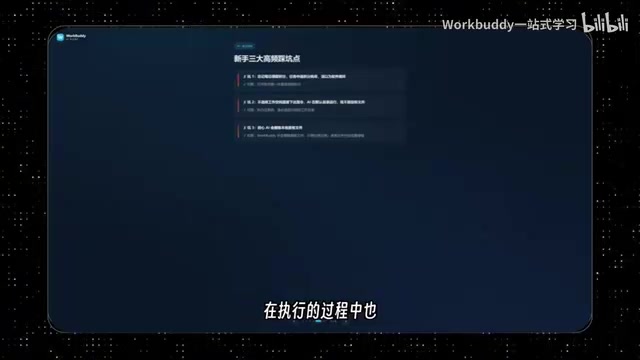
In terms of point consumption, Plan mode is usually the highest, followed by allow full access mode, and Ask mode is the lowest because it does not actually operate on files. The practical advice from the tutorial is: prioritize Ask mode for consulting local materials, use Plan mode in the vast majority of cases for actual task execution, and use full access mode only occasionally for simple tasks with very clear requirements and controllable risks. This division of modes essentially balances the expansion of AI Agent capabilities with local data security, and is the most worthwhile lesson for zero-basis users to master first when building automated office workflows.
Related articles
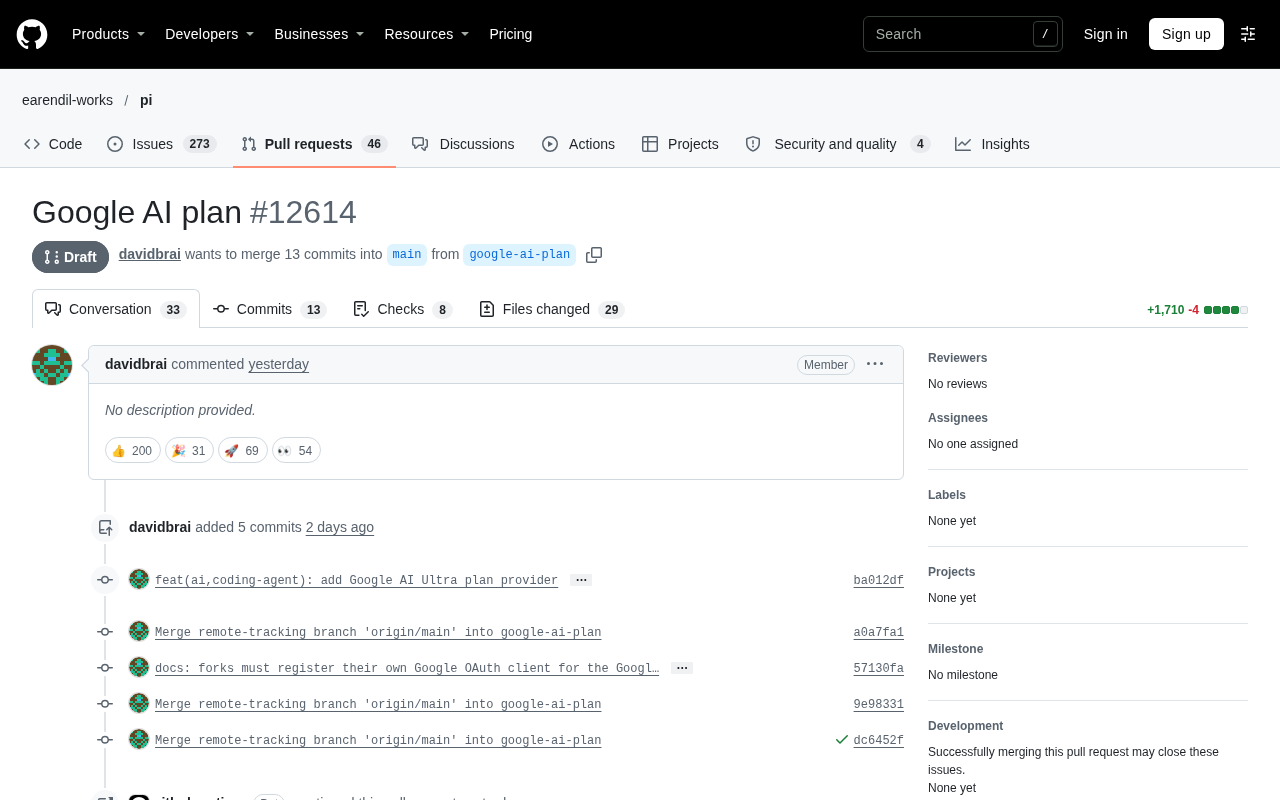
Google Officially Supports Pi Coding Agent: The AI Programming Tool Ecosystem Expands Further
Google adds official Google AI plan support for the open-source coding agent Pi, signaling accelerating integration between large model vendors and coding agent tool ecosystems. This article analyzes the impact on developer workflows, the tool ecosystem landscape, and model binding relationships.

Loom: One Machine for Weaving, Knitting and Braiding
Loom is a device that aims to seamlessly combine weaving, knitting and braiding in a single machine, drawing attention on Hacker News. This article examines its engineering challenges, significance for flexible manufacturing, and lessons for makers and hardware developers.
Running Local AI Agents on Mac: A Full Breakdown of the MLX Four-Layer Stack
A breakdown of Apple engineer Joanna's local Mac AI agent solution: the MLX four-layer stack, a three-step setup, and how the neural network accelerator, continuous batching, and distributed inference solve local agent performance bottlenecks.