Build a Local AI Agent with Python in 10 Minutes: Ollama + PydanticAI in Action
Build a private, cost-free local AI agent with Ollama + PydanticAI in minutes.
This article walks through building a local AI agent using Ollama and PydanticAI. Ollama runs the LLM locally (Qwen3 4B recommended) and exposes an inference endpoint at localhost:11434; PydanticAI provides a type-safe agent framework that auto-registers Python functions as tools, enabling the model to fetch time, evaluate expressions, and read/write files on demand. The main trade-off: small models are fast but less accurate at tool calling, while larger models demand more VRAM.
Why Build a Local AI Agent
Running an AI agent on your own machine means your data never leaves your device, you pay zero API fees, and response times are faster — a compelling combination for developers who care about privacy and cost. This article is based on a hands-on tutorial shared by a Bilibili creator, walking through how to build a fully local AI agent in Python within minutes. The agent can not only hold conversations but also call tools to read and write files, fetch the current time, and perform calculations.
The entire setup relies on just two core components: Ollama, a local model runner (the video's speech-to-text mistakenly transcribed it as "Alma" or "Odema," but the actual tool is Ollama), and PydanticAI, a Python agent framework. Ollama handles running large language models locally and serving inference, while PydanticAI organizes the model, system prompt, and tool functions into a usable agent.
Step 1: Run a Local Model with Ollama
Ollama is completely free software. Once installed, you can download and run a variety of local large language models. After installation, type ollama in your terminal — if it outputs normally, your environment is ready.
The key is choosing the right model for your hardware. How large a model you can run depends entirely on your VRAM or RAM:
- Dedicated GPU (Windows): Check your VRAM. The tutorial author uses a 4090 with 24GB of dedicated VRAM, which can handle larger models.
- Mac or unified memory devices: Check your total RAM, which on modern Macs typically ranges from 16GB to 128GB.
The general rule is to pick the best model that fits within your available VRAM or RAM. If you just want to follow along quickly, the author recommends a smaller variant of the Qwen3 series (pronounced "Guan 3" in the video) — such as 0.6B, 1.7B, or 4B — which runs smoothly on almost any modern hardware. The author's default recommendation is Qwen3 4B.
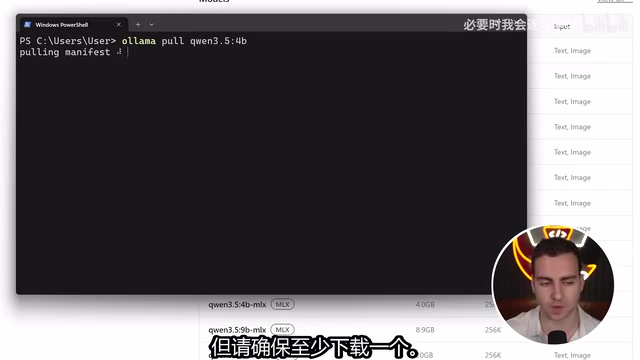
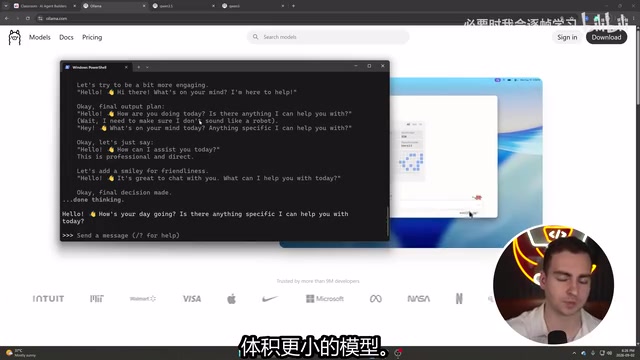
To download a model, run ollama pull <model-name> — for example, ollama pull qwen3:4b. After installation, use ollama list to view all installed models. To test a model's speed, run ollama run <model-name> to enter chat mode. It takes a moment to load, after which you can chat directly.
The author emphasizes a practical rule of thumb: bigger models perform better but are slower. As long as responses eventually come through, you're fine. If it's too slow, switch to a smaller variant.
Step 2: Connect to the Local Model with PydanticAI
Once the model is running, open your code editor (the author uses VS Code). Start by creating an agent.py file, and make sure you have Python and the pydantic-ai library installed — you can use pip, UV, or any similar tool.
The core logic for connecting to a local model is: use PydanticAI's Ollama model class and Ollama provider to point at the local inference server. Ollama starts a local inference service on your device by default at localhost:11434, and your code connects directly to this port to call the model.
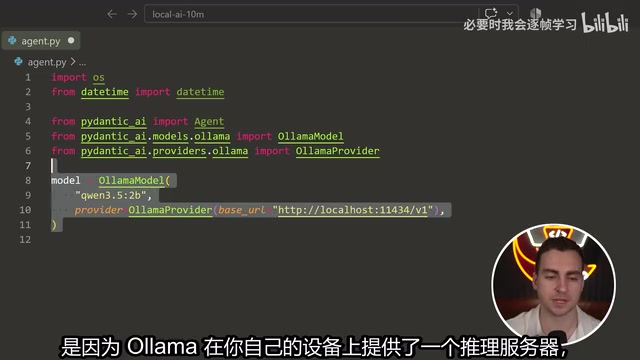
The significance here is that the entire AI capability runs on a local port — no cloud calls, no network latency, no API fees.
PydanticAI is a Python AI agent framework released by the Pydantic team (well known for the Pydantic data validation library). Its design philosophy is to bring Pydantic's type safety into AI application development. Its core advantage: it uses Python type annotations to automatically parse and validate tool parameters, so developers don't have to manually write JSON Schemas to describe tool signatures — the tedious step required when using Function Calling with OpenAI, Anthropic, and similar APIs. PydanticAI supports multiple backends, including OpenAI, Anthropic, Gemini, and local models running through the Ollama interface. For local deployments, it sends requests to the OpenAI-compatible REST interface exposed by Ollama, meaning the code-level distinction between a "local model" and a "cloud model" is nearly nonexistent, making it extremely easy to switch between the two.
Step 3: Equip the Agent with Tools
What makes an agent truly useful is Tools. In PydanticAI, tools are essentially just ordinary Python functions that the agent can automatically call when needed.
The author demonstrates a few tool functions:
- Get the current time
- Evaluate a math expression
- Save a note (create a file locally)
- Read a note (read contents from a local file)
PydanticAI automatically infers the parameter types of these functions and makes the model aware that it can call them. You simply pass the function names to the agent, and the framework handles the rest — type parsing and invocation logic — which is far less work than writing tool-calling logic by hand.
Tool Calling (also called Function Calling) is the standard mechanism modern LLMs use to interact with the outside world. Here's how it works: when generating a response, if the model determines it needs to call a tool, it outputs a structured "tool call request" (rather than a direct text answer). The framework captures this output, executes the corresponding function locally, feeds the result back into the model, and only then does the model generate the user-visible reply. This loop may repeat multiple times within a single user request — a pattern known as the "ReAct" loop (Reasoning + Acting). It's worth noting that not all small local models reliably support tool calling — this capability requires the model to have been specifically fine-tuned on Function Calling formats during training. The Qwen3 series performs relatively well in this regard and is one of the more recommended choices for local tool-calling scenarios.
Step 4: Define the Agent and Main Loop
With a model and tools in place, you can define the agent. In PydanticAI's framework, an agent is a combination of a system prompt, a set of tools, and an available model. You can add a system prompt to it and specify which tool functions it can call.
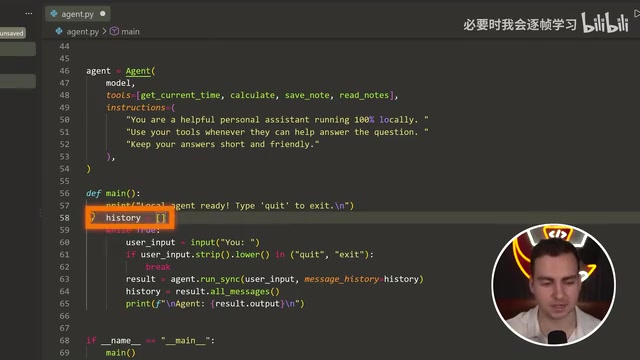
Finally, you need a main loop to drive the interaction. In the main function, the author's approach is:
- Maintain a complete conversation history
- Use a
whileloop to continuously accept user input - Exit the loop when the user types
quitorexit - Otherwise, send the user input along with the conversation history to the agent
- Update the history and print the agent's response
After running the script, the terminal indicates the local agent is ready. The author tested a few scenarios: asking it to save a note saying "Hello World Team" — it instantly invoked the note tool to complete the task; asking what the note said — it read the file and replied; asking for the current date and time — it called the time tool and returned the answer. Since everything runs locally, the entire experience is impressively fast.
Value and Limitations of This Approach
The greatest value of this tutorial is that it takes the shortest path from a local LLM to a functional agent: from pulling a model with Ollama, to connecting PydanticAI to the inference server, to mounting tools and building a conversation loop — every step is lightweight.
For developers, a local agent is ideal for handling privacy-sensitive data, making frequent calls without paying API fees, or running AI in offline environments. The tool mechanism also leaves plenty of room for extension — you can plug in any Python function to let the agent query databases, call external APIs, or manipulate the filesystem, building a genuinely practical automation assistant.
The limitations are equally clear: the capability ceiling of a local agent is constrained by hardware. Small models are fast, but their reasoning accuracy and tool-calling reliability fall short of larger models; running larger models requires substantial VRAM. This is an unavoidable performance-versus-cost trade-off in local deployment, and the most important factor to weigh when choosing a model.
Related articles
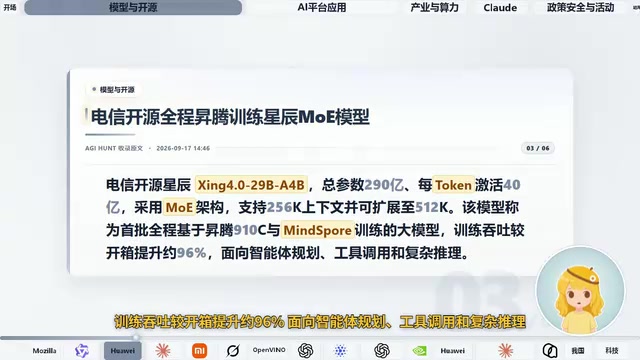
AI Daily Briefing: Qwen3-Omni Full-Modality Model Launches, Huawei Ascend 960 and Grok's New Model Surface
AI Daily: Qwen3-Omni Flash launches with full-modality support and 93% cost cuts; Huawei unveils million-processor AI architecture; Ascend 960 rumored; Grok spotted on GCP; N8N hits CVSS 10 vulnerability.
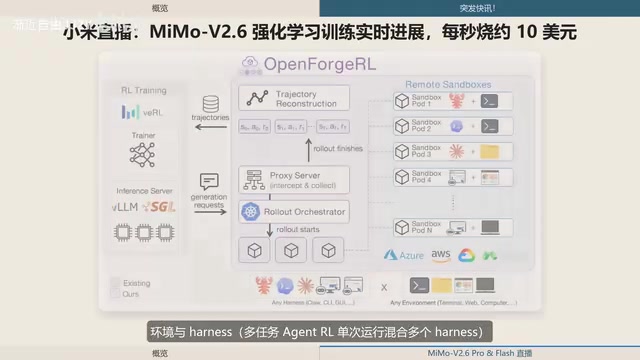
Xiaomi MiMo-V2.6 Live Training: ¥8.55M Spent in One and a Half Days, ~$10 per Second
Xiaomi's MiMo team live-streams MiMo V2.6 Pro/Flash RL training, spending ¥8.55M (~$1.28M) in 1.5 days — ~$10/sec. Covers compute scaling, open-source plans, and DeepSWE benchmarks.
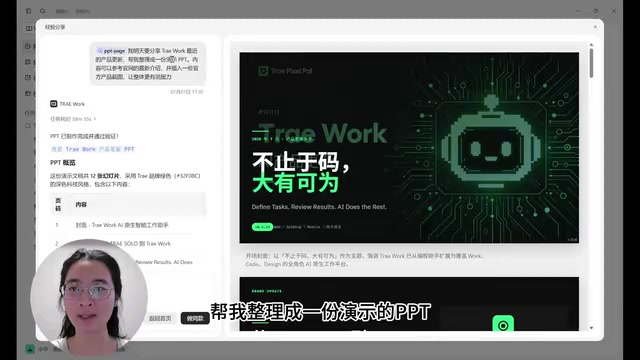
ByteDance Trae Work Getting Started Guide: 11 Use Cases Explained
A hands-on guide to ByteDance's Trae Work AI agent — covering Work, Code, and Design sections across 11 use cases including PPT generation, data analysis, coding, and more.