Connecting Unity CLI to Cursor and Antigravity: AI Agent Environment Setup and Skills Conflict Resolution

Breaking down the complete configuration process and conflict solutions for connecting Unity CLI to third-party Agents like Cursor and Antigravity.
Based on a hands-on demo by a Bilibili UP host, this article systematically outlines the complete pipeline for enabling third-party AI Agents to operate the Unity editor. It first emphasizes checking Use Unity CLI when creating a new project to install the Pipeline package, and the reliance on the Node environment to run skill installation scripts. It then introduces batch installation of Unity Skills via the official repository—mainstream Agents can recognize them directly, but Antigravity is the exception. Configuring external editors requires an additional repository, installed via Package Manager, after which Cursor or Antigravity can be selected in External Tools. For Cursor's conflict of preferentially reading MCP skills, the article provides the solution of deleting MCP Skills; for Antigravity, Skills must be manually extracted to the nested directory Agents/Skills/Skills/Skills. Finally, it recommends using agents.md to solidify behavior constraints and reduce misoperations.
Prerequisites: Unity CLI and Node Environment
When creating a new Unity project, you must check the "Use Unity CLI" option. This step installs the Unity Pipeline package, which the CLI depends on to communicate with the editor. Once the project is open, you can see Unity Pipeline in place in the Package Manager.
Skill installation depends on the Node environment. If Node is not installed on your system, download the installer for your OS from the official channel, and it's recommended to restart your computer after installation to ensure environment variables take effect. This is the foundation for all subsequent CLI operations—skipping this step will prevent the skill installation scripts from running.
MCP (Model Context Protocol) is an open protocol proposed by Anthropic in late 2024, designed to let AI models connect to external tools and data sources in a standardized way. It defines a client-server architecture: the MCP Server exposes tools, resources, and prompts, while the MCP Client on the Agent side invokes these capabilities via JSON-RPC. Compared to each Agent implementing its own plugin interface, MCP's advantage is "implement once, reuse everywhere," which is why it has been widely adopted by tools like Cursor and Claude Desktop. But precisely because it is so general-purpose, when both MCP skills and domain-specific interfaces (like Unity CLI) exist in the environment, Agents tend to match the former first—this is exactly the root cause of the Cursor conflict discussed later.
Node.js is a JavaScript runtime built on Chrome's V8 engine, and npm (Node Package Manager) is installed alongside it. It is the distribution channel for the vast majority of CLI tools and skill installation scripts today. The Unity Skills installation script in this article is essentially an npm package, so the Node environment must be present first. After installation, restarting the terminal or computer is recommended to refresh the PATH environment variable; otherwise, commands like node and npx will report "not found" in newly opened terminals.
Installing Unity Skills: From Repository to Agent Recognition
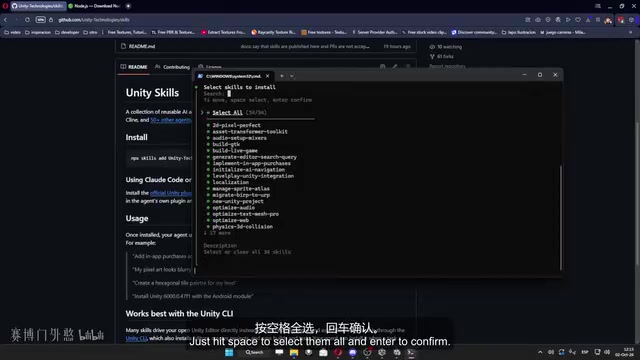
Unity's official skills repository provides a batch installation script. Paste the installation command in the terminal and press Enter; the script will ask for confirmation (type Y), then enter the skill selection interface. Press the spacebar to select all required skills, then press Enter to confirm.
During installation, you'll be asked whether to add additional Agents. Mainstream Agents are already in the default list, so just skip this. Next, choose the installation scope: global installation shares skills across all projects, while project-level installation makes them available only in the current project. The UP host chose global installation to simplify configuration costs when switching between multiple projects. Choose "Simpling" (i.e., simple mode) as the installation method, and wait a few seconds for completion.
At this point, most Agents can already recognize Unity Skills, but Antigravity is the exception—this trick doesn't work for it, and it needs separate handling.
Agent Skills can be understood as capability extensions in the form of "skill packs": each skill is typically a directory containing SKILL.md (describing trigger conditions and usage) plus several scripts or resources. When an Agent receives a task, it first scans the metadata of installed skills to determine which skills match the current intent, then loads the full content on demand. This "progressive disclosure" design avoids stuffing all skills into the context at once.
For this reason, whether a skill can be recognized depends on whether the Agent scans the correct directory. Default scan paths vary across Agents—for example, Cursor reads .cursor/skills or the global config directory, while Antigravity's scan logic doesn't align with standard paths. This explains why global installation works for most Agents but fails for Antigravity, which requires manually constructing nested directories to "feed" it.
Getting Unity to Recognize External Editors
Once Skills are installed, you also need to make Unity recognize Cursor, Antigravity, or Windsurf as the default code editor. The UP host maintains a personal repository; simply paste the installation link via "Add Package from Git URL" in the Package Manager.
After installation, go to Edit > Preferences > External Tools, and you'll see Cursor and Antigravity in the external editor options. Quick test: create a new script and double-click it—if Cursor opens normally, the link is established.
Resolving MCP Skills Conflicts: Common Cursor Pitfalls
When asking Cursor to execute the instruction "create a circular scene," it tries to invoke MCP instead of Unity CLI. The reason is that Cursor read the MCP skill, which is common in environments where multiple Agent tools are configured simultaneously.
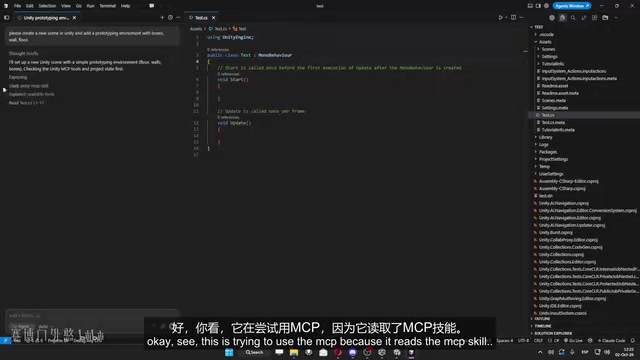
The solution is to run the mpx skills remove command in the terminal, locate the MCP Skills, and delete them. Send the same prompt again, and Cursor switches to reading Unity CLI Skills, directing Unity through the CLI to complete the scene setup. After a few minutes, the scene is generated.
The essence of this problem is skill priority conflict: when multiple skill sets exist simultaneously, the Agent may preferentially match what it considers the more general MCP protocol rather than the domain-specific Unity CLI. Deleting redundant skills is the most direct solution.
The skills CLI command (the mpx skills remove appearing in the article is a specific wrapper or typo form; the core is the skills subcommand) is used to manage locally installed skill sets. Common subcommands include list (list installed skills), remove (uninstall a specified skill), and add (install new skills). When Agent behavior doesn't match expectations, first use list to confirm the currently active skill inventory—that's the first step in troubleshooting conflicts. After deleting MCP Skills, it's recommended to restart the Agent or start a new conversation to ensure it rescans the skill directory; otherwise, the old skill index may still be cached.
Antigravity's Special Configuration: Manual Skills Deployment
After switching to Antigravity in preferences, opening a script launches normally, but when asked to execute a task, it completely fails to recognize Skills—and they can't be found in Antigravity's settings interface either.
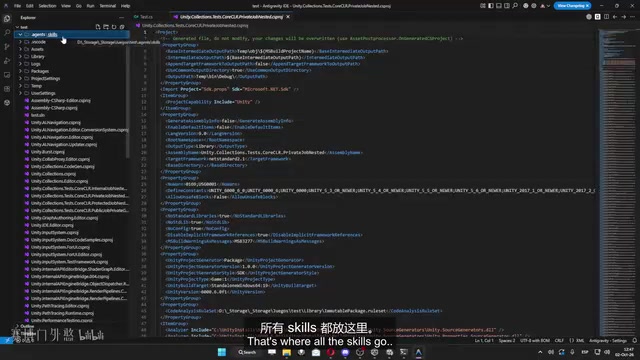
The solution is to create a nested directory structure under the project root: Agents/Skills/Skills/Skills, download the zip from the Unity repository, and extract the Skills directly into that path. After restarting Antigravity, enter Unity CLI-related instructions, and it will recognize the Skills and read them.
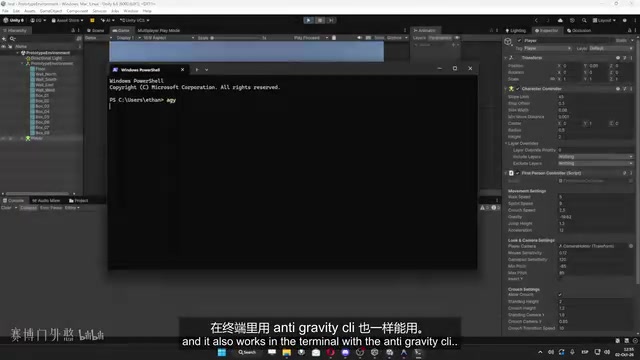
Test "create a first-person controller": Antigravity first reads the Skills, then connects to Unity via CLI, and after a few minutes the controller is complete and works well. Using Antigravity CLI in the terminal works the same way—type the skills command and you can see all skills loaded.
Although this manual deployment method is cumbersome, it bypasses Antigravity's compatibility issues with standard installation paths. The directory nesting levels may look redundant, but they are the necessary condition for Antigravity to correctly scan skills in the current version.
Constraining Agent Behavior with agents.md
To further improve Agent reliability, add an agents.md file to the project root. Any Agent will read this file before executing tasks—it's essentially setting project-level rules for the intelligent agent.
The UP host explicitly requires in the file: always use Unity CLI, never touch Meta files, and specify project structure and code style preferences. The actual difference is significant—the Agent no longer arbitrarily modifies Unity's metadata files, and generated code better conforms to project standards.
This practice is worth promoting: rather than repeating constraints in every conversation, solidify the rules into a file that Agents must read, reducing communication costs and the risk of misoperations.
agents.md is a convention gradually formed by the community: place a pure Markdown rules file in the repository root, and Agents will automatically read it and use it as system-level context when starting tasks. It works because current mainstream coding Agents all perform a "project context discovery" at the start of a session, scanning conventional files like agents.md, README.md, and .cursorrules. Compared to repeating constraints in every conversation, writing rules into a file makes them persistently effective and easy to share and version-control across teams. When writing, focus on hard rules like "prohibitions" and "must-dos," and avoid lengthy style guides, which would eat into the context budget.
Summary
The core of cross-Agent configuration for Unity CLI lies in three points: laying the foundation with the Pipeline package and Node environment, deploying Skills separately according to each Agent's characteristics, and solidifying behavior constraints with agents.md. Cursor requires cleaning up MCP skill conflicts, while Antigravity requires manual extraction to a specified nested directory. Both paths are verified as feasible; the choice depends on the combination of Agents you use daily.
Related articles

Free Unlimited Claude Code Solution: Agnes AI + CC Switch Setup Guide
No paid subscription needed — pair the free AI platform Agnes AI with the open-source tool CC Switch to provide a backend for Claude Code, enabling unlimited free calls to text, image, and video models. This guide covers the full setup, test results, and usage boundaries.

A Complete Zero-Cost Guide to Getting Started with Claude Code for Beginners in China
A beginner's guide to Claude Code for users in China: two installation methods (command line and IDE plugin), full configuration steps for replacing the official API with the free domestic LongCat model, and a hands-on demo of building a small tool with natural language, plus tips.

When the NSA Gets Involved: The AI Supply Chain Crisis Behind Open-Source CVEs and API Key Hijacking
Multiple open-source projects disclosed severe CVEs in one day, PHP flaws alarmed the FBI, and Railway and OpenCode were breached with API keys stolen. This article breaks down the vulnerability window, AI-accelerated exploitation, and the AI supply chain crisis behind the API key black market, with a developer defense checklist.