Copilot Studio Workflows: Unattended Auto-Confirmation of D365 Purchase Orders

Use Copilot Studio workflows to call Dataverse custom APIs for auto-confirming D365 purchase orders, waking the AI agent for diagnosis only on failure and pushing to Teams.
This article breaks down an unattended D365 purchase order auto-confirmation solution: expose the X++ tool to Dataverse via a custom API, orchestrate a workflow in Copilot Studio to call it directly, end silently if all succeed, and wake the AI agent to investigate on failure and push diagnostic results via Teams. The article reconstructs in build order the prerequisite app installation, manual mapping of the eight custom API components, workflow conditional branches, and agent prompt constraints, and validates with order 42's budget overrun case that the agent's conclusion matches the F&O raw error exactly. The author affirms the architectural trade-off of 'AI only intervenes on exception paths,' while pointing out the high manual maintenance cost of the custom API, the prerequisite installation taking about 1 hour 15 minutes, and engineering issues such as concurrency, retries, and deduplication after scheduled triggering that are not yet covered.
Copilot Studio Workflows: Unattended Auto-Confirmation of D365 Purchase Orders
Having a human type a message in a chat window and letting an AI agent call a tool—that's already the previous generation's approach. The solution broken down in this article comes from a hands-on demo by a YouTube tech blogger: the same X++ tool is transformed into a Dataverse custom API, then orchestrated into a workflow in Copilot Studio, achieving an unattended closed loop where "if all orders succeed, it quietly ends; only on failure does it wake the agent to investigate and push to Teams."
According to the video demo, the key to this entire chain isn't the agent itself, but rather transferring the tool's trigger authority from "humans" to the "workflow." Below, I reconstruct this chain in build order and supplement the design trade-offs that are easy to overlook.
From Chat-Triggered to Event-Triggered: A Shift in Thinking
In the previous video, the blogger built an X++ class Purchase Order Confirm Custom, added a custom API attribute to it, and the agent discovered this tool via MCP and could call it autonomously. But there was still a break point in the process: every time an order needed confirmation, someone had to enter the chat window and send a message.
The core idea of the new approach is to demote the agent from the "main flow" to the "exception handler." The workflow handles routine actions—calling the tool to confirm orders; the agent is awakened only in the failure branch, responsible for diagnosing the cause and suggesting fixes. This both reduces token consumption and response latency, and places AI intervention at the point where judgment is truly needed. The blogger repeatedly emphasized this design in the video: the agent is called only when "something actually goes wrong."
MCP (Model Context Protocol) is an open protocol proposed by Anthropic for enabling AI agents to discover and call external tools in a standardized way. In this scenario, after the X++ class is exposed through a custom API attribute, the agent automatically identifies the tool and its parameter definitions via MCP, thereby calling it autonomously in chat. The value of MCP lies in decoupling: tool providers only need to describe capabilities according to the protocol, and agents don't need to hard-code the invocation details of each tool. However, MCP currently mainly targets interactive agent scenarios. The main flow in this article switches to a workflow that directly calls Dataverse actions, precisely to bypass the limitation of "someone must initiate a conversation" and hand the trigger authority to events or timers.
Prerequisites: Letting Dataverse Reach Finance and Operations
Workflows look up callable actions in Dataverse, so the first step is to expose the X++ tool as a custom API that Dataverse can recognize. Finance and Operations retains its own database, but the environment is connected to Dataverse, and once configured, Dataverse can call back into classes in F&O.
Two apps need to be installed for the environment in the Power Platform admin center:
- Finance and Operations Virtual Entities: Brings F&O data entities into Dataverse as virtual tables, where reads and writes act directly on F&O rather than copying data. Custom APIs depend on it—the Microsoft plugin forwards each call to a special virtual table, which then passes the request to the class in F&O. Installation takes about 15 minutes.
- Copilot for Finance and Operations apps: Provides the Copilot plugin that lets Dataverse execute X++ code, one of which is used when creating custom APIs. Takes longer, about 1 hour.
The blogger specifically warns of a pitfall beginners often hit: creating a solution in a brand-new sandbox environment may fail because F&O is retrying synchronization of the virtual tables for the vendor engagement app, and solution creation fails during synchronization. The workaround is to postpone the next run time of the CDS virtual entity auto-creation batch job.

Virtual tables (Virtual Entities) are a Dataverse mechanism that does not store a copy of data in Dataverse, but instead maps data entities from external systems (such as F&O) into structures that look like local tables, with read and write operations forwarded to the external system in real time. In this article, the Microsoft plugin forwards each call of the custom API to a special virtual table, which then passes the request to the X++ class in F&O. The benefit is that F&O always remains the single source of truth, avoiding synchronization delays and consistency issues; the cost is that every call depends on network round-trips and F&O-side availability, and metadata synchronization of virtual tables may cause the sandbox solution creation failure mentioned in this article.
Manually Building a Custom API: Eight Components Aligned to One Class
Create a solution in Power Apps as a container, first create a new publisher (named erp digest in the demo, prefix int), then create the custom API. Key field settings:
- Binding Type as global, corresponding to the "unbound action" called in the workflow;
- Plugin Type select Microsoft's
InvokeNoCustomAPIplugin, which is the bridge for Dataverse to call F&O classes.
The next task is to map the 3 inputs and 4 outputs on the class one by one to request parameters and response properties. The blogger emphasizes that naming must be strictly aligned: the parameter's Name must exactly match the data member name on the class (e.g., purchase_order_numbers), because F&O uses this name to find the corresponding input; Display Name is just a human-readable label and can be filled freely.
| Type | Name | Data Type | Optional |
|---|---|---|---|
| Request Parameter | purchase_order_numbers | string | No |
| Request Parameter | stop_on_first_failure | boolean | Yes |
| Request Parameter | company_id | string | Yes |
| Response Property | confirm_count | integer | — |
| Response Property | failed_count | integer | — |
| Response Property | results_json | string | — |
| Response Property | company | string | — |
Eight components plus one custom API, all manually entered. The blogger is blunt about this: ideally these should be auto-generated from the class, but that capability doesn't exist yet, so manual assembly is the only option, and he hopes Microsoft will add it later. This is the most obvious efficiency shortcoming of the current approach, and something readers should factor into their evaluation of implementation costs.
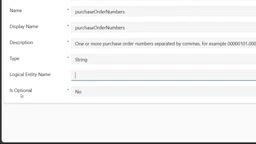
Binding Type determines how the custom API is invoked in Dataverse. global corresponds to an Unbound Action, which does not require specifying an entity record as context when called, suitable for batch operations like this article's "pass in a list of order numbers, return batch results." Conversely, if the binding type is set to entity, the action must be associated with a specific record, and the record ID must be provided when calling. In Copilot Studio workflows, the Perform an unbound action step is precisely used to call global-bound custom APIs, so choosing the wrong binding type will cause the action to not be found in the workflow.
Orchestrating the Workflow in Copilot Studio
Go to Copilot Studio, switch to the same environment, create a new workflow and name it confirm purchase orders agent flow, and switch the canvas to a vertical layout for easier reading. Keep the trigger as manual for now for testing, and later change it to a scheduled plan (e.g., run nightly).
Inputs and Tool Invocation
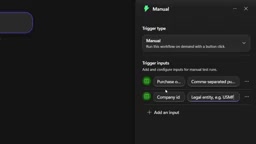
Add two text inputs: purchase order numbers (comma-separated, must already be approved) and company ID (e.g., USMF). Then add Perform an unbound action (Microsoft Dataverse) under the start card, paste the unique name of the custom API to select it, and fill in the three parameters. Among them, keep stop on first failure as no, ensuring every order is attempted and every order has a result.
Failure Branch: Conditional Check and Agent Wake-Up
After the action, add an If/Else condition: take failed_count and check if it's greater than 0. If all succeed, go to the else branch and the workflow ends directly; if at least one order fails, go to the if branch, where the agent step is attached—select the existing ERP agent from the agent list, and paste a prompt to hand the failed orders to the agent to investigate the cause and suggest fixes, while clearly constraining it: only investigate and suggest, do not confirm or modify any orders on its own.
The two placeholders in the prompt are filled with the action outputs company and results. The final output is kept as a text response for reference in the Teams message.
Placeholders in the prompt are inserted via dynamic content in the Copilot Studio agent step and filled at runtime by the outputs of upstream actions. This article uses two placeholders, company and results, to pass the context of failed orders to the agent, which then investigates the root cause. Note that the content of placeholders goes directly into the agent's context window; if results_json is large, it may crowd out the agent's reasoning space or increase token consumption. For batch failure scenarios, it's advisable to truncate or summarize before passing in, keeping only the key fields of failed orders rather than dumping the full JSON verbatim.
Pushing Diagnostic Results to Teams
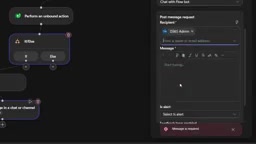
After the agent step, add Post message in a chat or channel (Microsoft Teams), set Post as to Flowbot, and choose chat with Flowbot for the posting location—the message is delivered as a bot private chat, not from anyone's personal account. Fill in the recipient's email to resolve to the corresponding account.
The message template contains four placeholders: title, summary line, agent investigation conclusion, and raw results, mapped respectively to the action outputs company, confirmed count, failed count, the investigation returned by the agent step, and the action output results_json.
Hands-On Test: One Failed Order, Closed Loop in Two Minutes
After saving and publishing, the blogger tested with order 42 and company USMF—deliberately choosing this order because budget control would reject it, perfectly validating the failure branch.
Run process: the unbound action completed in about 8 seconds, the workflow entered the if branch, the agent began investigating, and the entire run successfully ended after about 2 minutes. Checking the run details, the inputs were order 42 and USMF, the outputs showed confirmed count as 0, failed count as 1, and results_json contained the result for that order. The agent step returned three values: conversation ID, status completed, and a result text beginning with "Root cause for order 42."
The Flowbot message in Teams showed: company USMF, 0 orders confirmed, 1 order failed. The agent's investigation report pointed out that order 42 is an approved open advertising order worth $3,000, whose only line item posts to a single ledger account, and the budget check shows insufficient funds in that account, with the full $3,000 exceeding the budget and threshold. There are two fix suggestions: post an approved budget transfer of no less than $3,000 to the account; or if the account itself is wrong, correct the line item's accounting distribution, rerun the budget check, and then confirm.
The raw results at the bottom of the message show the information returned by F&O: posting for order 42 exceeds the available budget funds for that account by $3,000—completely consistent with the agent's conclusion. This cross-validation is the most convincing part of the entire demo: the AI's diagnosis is not generated out of thin air, but can be checked line by line against the raw error.
The Value and Boundaries of This Approach
What's commendable is the architectural trade-off: using conditional branches to limit AI calls to exception paths, with zero manual work and zero conversation in the routine flow; the agent is constrained to a read-only investigation role, avoiding the business risk of automatic order modifications; diagnostic results go directly to Teams, so the responsible person doesn't need to log into an additional system.
What needs to be viewed soberly is the cost and maintenance burden. The two prerequisite app installations take about 1 hour 15 minutes in total, the eight components of the custom API are all manually created and naming must correspond one-to-one with the X++ class, and any change to the class requires synchronously changing the Dataverse side—this is exactly why the blogger calls for Microsoft to provide auto-generation capability. In addition, the trigger method in the demo is still manual; once truly implemented as scheduled or event-driven, engineering issues such as concurrent runs, failure retries, and message deduplication still need to be handled, which the video does not cover.
For teams already running F&O and Power Platform, this path offers a low-intrusion way to enhance with AI: without changing core business logic, just adding an orchestration layer on top of Dataverse.
One-line Summary
Use Copilot Studio workflows to call Dataverse custom APIs to automatically confirm D365 purchase orders, waking the AI agent for diagnosis only on failure and pushing to Teams.
Paragraph Summary
This article breaks down an unattended D365 purchase order auto-confirmation solution: expose the X++ tool to Dataverse via a custom API, orchestrate a workflow in Copilot Studio to call it directly, end silently if all succeed, and wake the AI agent to investigate on failure and push diagnostic results via Teams. The article reconstructs in build order the prerequisite app installation, manual mapping of the eight custom API components, workflow conditional branches, and agent prompt constraints, and validates with order 42's budget overrun case that the agent's conclusion matches the F&O raw error exactly. The author affirms the architectural trade-off of "AI only intervenes on exception paths," while pointing out the high manual maintenance cost of the custom API, the prerequisite installation taking about 1 hour 15 minutes, and engineering issues such as concurrency, retries, and deduplication after scheduled triggering that are not yet covered.
Related articles

Free Unlimited Claude Code Solution: Agnes AI + CC Switch Setup Guide
No paid subscription needed — pair the free AI platform Agnes AI with the open-source tool CC Switch to provide a backend for Claude Code, enabling unlimited free calls to text, image, and video models. This guide covers the full setup, test results, and usage boundaries.

A Complete Zero-Cost Guide to Getting Started with Claude Code for Beginners in China
A beginner's guide to Claude Code for users in China: two installation methods (command line and IDE plugin), full configuration steps for replacing the official API with the free domestic LongCat model, and a hands-on demo of building a small tool with natural language, plus tips.

When the NSA Gets Involved: The AI Supply Chain Crisis Behind Open-Source CVEs and API Key Hijacking
Multiple open-source projects disclosed severe CVEs in one day, PHP flaws alarmed the FBI, and Railway and OpenCode were breached with API keys stolen. This article breaks down the vulnerability window, AI-accelerated exploitation, and the AI supply chain crisis behind the API key black market, with a developer defense checklist.