Hands-On: Building Automated AI Agents and a Local Knowledge Base with Cherry Studio + MCP
Cherry Studio + MCP + Ollama: a 20-minute desktop AI workflow that executes tasks and retrieves privately.
Based on a Bilibili tutorial, this article covers integrating MCP and Ollama in Cherry Studio: choosing a function-calling model like DeepSeek V3, installing UV/Bun runtimes, adding file system, web scraping, and Shell MCP servers, deploying qwen3:0.6b and bge-m3 locally, and building a private knowledge base. It also highlights pitfalls like R1's lack of function calling and Shell permission risks.
Cherry Studio recently added support for MCP (Model Context Protocol). Combined with the local model deployment tool Ollama, ordinary users can now build a desktop AI workflow that both automates tasks and privately retrieves personal documents. A hands-on tutorial from Bilibili creator "YouShouJiuXing" ("Easy as Pie") walks through the entire process—from model configuration and MCP server installation to setting up a local knowledge base—and the whole chain can be up and running on Windows in about 20 minutes. This article is based on that video and organizes the key steps and pitfalls worth noting.
Tool Selection: Why Cherry Studio + MCP
Cherry Studio is an open-source, free AI desktop client that supports Windows, Mac, and Linux—cross-platform. It is itself a multi-model aggregation chat front-end, but with the latest version introducing MCP support, its role has changed: from a "chat window" to an "agent host that can call external tools."
MCP was introduced by Anthropic and is positioned as a standardized way for large models to connect to external data and tools. The creator used an apt analogy—MCP is like a USB interface, letting AI access resources such as the file system, web scraping, and the command line through a unified protocol, without having to write adapter code for each tool. In practice, this "building-block" style of extension lets non-developers assemble assistant capabilities on demand.
Function Calling is a key capability of large models: instead of replying with text directly in a conversation, the model outputs a structured call request (e.g., "call file_system.write with path and content as parameters"), which the host program actually executes before passing the result back to the model. MCP servers are essentially the external tools being called, so the host client must rely on the model's function-calling capability to trigger them. DeepSeekAd R1 is a reasoning model designed for long-chain thinking rather than tool orchestration and does not expose Function Calling, so in this workflow you'll see it "think for a long time but fail to execute"; V3 is a general-purpose chat model with native tool-calling support, which is why the author recommends V3 as the main model.
Step 1: Configure the Chat Model
After installation, go to the settings page to configure models. The video demonstrates two routes: the default SiliconFlow service, which grants 20 million tokens upon registration and is ideal for a zero-cost start; the author instead switches to DeepSeek, creates an API Key on the open platform, pastes it back into Cherry Studio, and clicks "Check" to verify connectivity for DeepSeek Chat (V3) and DeepSeek Reasoner (R1) respectively.
There is an easily overlooked prerequisite here: the R1 model does not support Function Calling, and Cherry Studio relies on that capability to trigger MCP servers. In the video, the author asks R1 to create a txt file locally, waits a long time, and gets an error; switching to V3 successfully writes hello.txt to the specified directory. If you plan to use MCP, choose V3 or a model of the same class that supports tool calling as your main model.
Step 2: Install the MCP Runtime Environment
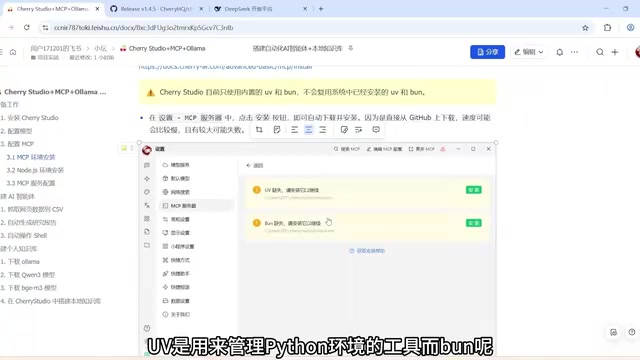
Most MCP Servers are written in Python or TypeScript, so two runtimes are needed: UV manages the Python environment, and Bun runs JavaScript/TypeScript applications.
There is an official design detail here: Cherry Studio only uses its built-in UV and Bun and does not reuse versions already installed on your system. Even if you already have them on your computer, you must reinstall them within the client. The installers are downloaded from GitHub, and a poor network connection can easily cause failures. The video author's approach was to manually download three files and place them in the specified paths; refer to the official documentation for the exact locations. Remember to restart the client after installation for it to take effect.
You also need to install the latest stable version of Node.js and verify with node -v and npm -v on the command line that the version numbers are output correctly.
UV and Bun are next-generation runtimes and package managers in the Python and JavaScript/TypeScript ecosystems, respectively. UV, written in Rust by the Astral team, replaces pip/venv and installs dependencies far faster than traditional approaches; Bun is a Node.js alternative that combines runtime, package manager, and bundler in one and can execute TypeScript directly. Many MCP Servers are distributed as uvx or bunx—that is, "temporarily fetch the package and run it"—without requiring a prior global install, which reduces configuration to a single command. Cherry Studio bundles these two runtimes to shield users from system environment differences (version conflicts, unconfigured PATH, etc.) and ensure that MCP Servers behave consistently on any machine; the cost is extra disk space and the requirement to obtain them through the client's installation process.
Step 3: Add and Activate MCP Servers
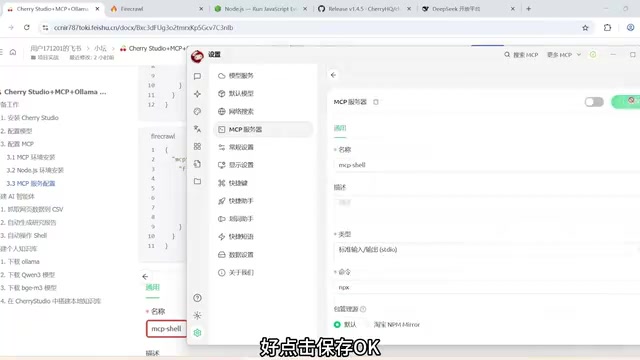
Cherry Studio offers two configuration methods: Quick Create (enter a command, similar to the Claude client configuration) and Import from JSON (identical to Claude Desktop). The video demonstrates both:
- File System: copy the JSON configuration from GitHub, change the path parameter to a local directory (the example is the ABC folder on the D drive), and authorize read/write access to that directory.
- Web Scraping (FileCrawl): also import JSON, but you first need to get a Token from the official website and replace the API Key in the configuration.
- Shell Control: use Quick Create, choose a custom name, select STDIO as the type, and enter
npx -yplus the package name as the startup command.
After saving, you need to manually click Activate; only when the status turns green is it ready.
STDIO is one of MCP's two main transport methods (the other is SSE/HTTP). With STDIO, the client launches the MCP Server as a child process, and the two sides exchange JSON-RPC messages over standard input/output streams without occupying a network port—naturally suited to local tools. In Quick Create, the "command" field is the child process's startup command; npx -y means using npm to temporarily download and directly run the specified package without prompting for confirmation, and the -y flag cannot be omitted or it will hang on an interactive confirmation. The JSON import method packages the startup command, arguments, and environment variables (often including API Keys) into a single configuration, making it easy to migrate and reuse from clients such as Claude Desktop.
Hands-On Verification: Three Automation Scenarios
The video uses three tasks to test whether the MCP chain actually works:
- Web data to CSV: ask the AI to scrape an AI model leaderboard from a webpage and organize it into a CSV. FileCrawl successfully fetched the content and output a table with correct formatting.
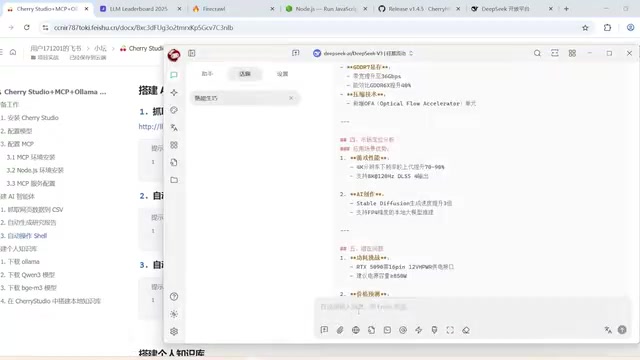
- Search and generate an analysis report: request a search for RTX 50-series GPU information, write it into a Markdown report in Chinese, and save it locally. The AI first called the search tool to gather information, then created a document through the file system, but failed to write directly to a local path, so the file ultimately had to be downloaded manually. The content itself covered architecture, core technologies, and performance specs, with acceptable completeness.
- Execute a Shell command: query the Docker version; execute command returned 28.0.4, matching the local actual version.
The third scenario deserves a separate warning: Shell-type MCP permissions are extremely broad, so be sure to limit the scope of executable tasks; otherwise a mistaken operation could interrupt running processes or cause data loss. Also, turning off the MCP switch when not in use can reduce token consumption—a practical habit for cost control.
Step 4: Deploy Local Models with Ollama
The knowledge base section switches to the local model route. Download the appropriate system version from the Ollama website and install it. No desktop shortcut is created, so run ollama version on the command line to confirm the installation succeeded; a llama icon in the bottom-right status bar indicates it is running in the background.
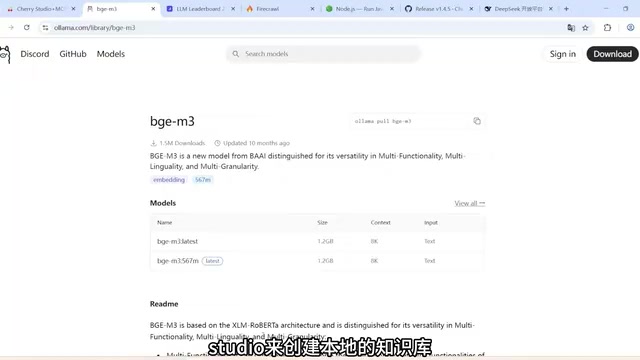
On model selection, the video demonstrates the Qwen3 series: the flagship 235B version is 142GB in size and cannot be handled by an ordinary personal computer; the author uses the smallest 0.6B version for the demo, balancing performance and resource consumption, pulling it with the ollama run command and entering the conversation. For the embedding model, bge-m3 is chosen; it converts text into vectors to support semantic retrieval and is likewise downloaded and loaded via command.
Step 5: Create a Local Knowledge Base and Verify Retrieval
Back in Cherry Studio, enable Ollama under Model Services, and fill in the two model names qwen3:0.6b and bge-m3 completely when adding them (copy the names from the ollama list output to avoid typos). Then create a new knowledge base on the Knowledge Base page, select the local bge-m3 as the embedding model, and import from various sources such as files, directories, URLs, and notes.
The video tests with an AI-generated "Cat Care Manual" PDF; after uploading, a green check appears to indicate parsing is complete. In the conversation, select the local model, turn off MCP, associate the knowledge base, and ask "When did Xiaohua get vaccinated?" The AI accurately answers with the rabies vaccine date and booster records based on the document content; after disassociating the knowledge base and asking the same question again, the model cannot answer—confirming that the retrieval chain is indeed working.
The core advantage of local deployment is offline availability and data never leaving the machine, making it suitable for confidential company files or personal private data. The trade-off is that performance is usually weaker than cloud services, so selection requires weighing effectiveness, hardware resources, and privacy requirements.
Embedding models and semantic retrieval are the technical foundation that enables a knowledge base to "answer correctly." bge-m3 belongs to the BGE series of multilingual embedding models; it maps each piece of text to a high-dimensional vector, and semantically similar texts are closer together in vector space. When a PDF is uploaded, the system first splits it into chunks and vectorizes each one into a local vector store; when a question is asked, the question is likewise vectorized, the system retrieves the most similar snippets, and then passes them along with the question to the chat model to generate an answer—this is the typical RAG (Retrieval-Augmented Generation) flow. Therefore, the quality of the embedding model directly determines recall accuracy, while the chat model only needs to organize the language; the two can be different models, which is why the video pairs qwen3:0.6b with bge-m3.
Who This Combination Is For
The barrier in this whole process is concentrated in environment installation: unstable GitHub downloads, the requirement to install UV/Bun through the client, and the need for exact model-name matching—these three are the most common sticking points. Once past them, MCP's JSON configuration and drag-and-drop knowledge base uploads are quite intuitive. For users who need to repeatedly process web data, batch-organize documents, or hand sensitive materials to AI for analysis without going to the cloud, Cherry Studio + MCP + Ollama forms a desktop-level solution with controllable cost and privacy; for scenarios with higher performance requirements, you can still keep a cloud model as the mainstay and use the local chain as a supplement.
One-line Summary
Cherry Studio combined with MCP and Ollama lets you build a desktop AI workflow that can execute tasks and privately retrieve information in 20 minutes.
Paragraph Summary
Based on a Bilibili tutorial, this article walks through the practical path of integrating MCP and Ollama in Cherry Studio. On tool selection, Cherry Studio, being open-source, cross-platform, and MCP-capable, upgrades from a chat front-end to an agent host; MCP standardizes external tool access like a USB interface. The process has five steps: configure a chat model that supports function calling (R1 won't work, so switch to V3), install the built-in UV and Bun runtimes within the client, add MCP Servers such as File System/Web Scraping/Shell via Quick Create or JSON import and activate them manually, deploy qwen3:0.6b and the bge-m3 embedding model with Ollama, and create a local knowledge base and verify retrieval works. Three hands-on scenarios test scraping to CSV, search-and-report generation, and Shell command execution, while also flagging Shell permission risks and the habit of turning off MCP to save tokens. The overall barrier is concentrated in environment installation, and it suits users who value privacy and cost.
Related articles

Let the Agent Be the Director: A Vision for a Fully Local AI Production Workstation
A Bilibili creator envisions building a local AI director workstation with NVIDIA RTX Spark, letting an Agent orchestrate script, storyboard, video generation, voiceover, auto-editing, and review for full AI production.

Zen Browser: The Perfect Replacement for Arc?
Zen Browser, an open-source alternative to Arc, inherits vertical tabs and sidebar workspaces while enhancing privacy and customization. This article analyzes its design philosophy, feature comparison, and community ecosystem, exploring why it's a new choice for Arc users.

Behind a Million Elevator Maintenance Jobs: How TK Elevator Uses AI to Unlock Decades of Knowledge
TK Elevator shares in Cologne how technology gives maintenance technicians fast access to decades of shared knowledge, reducing search time and improving elevator and escalator maintenance efficiency. This article analyzes its knowledge reuse logic and implications for AI in field service.